A standard position
The module hooks into the positions PrestaShop provides on the product page, by default the reassurance block. Nothing to change in your theme files.

Solutions

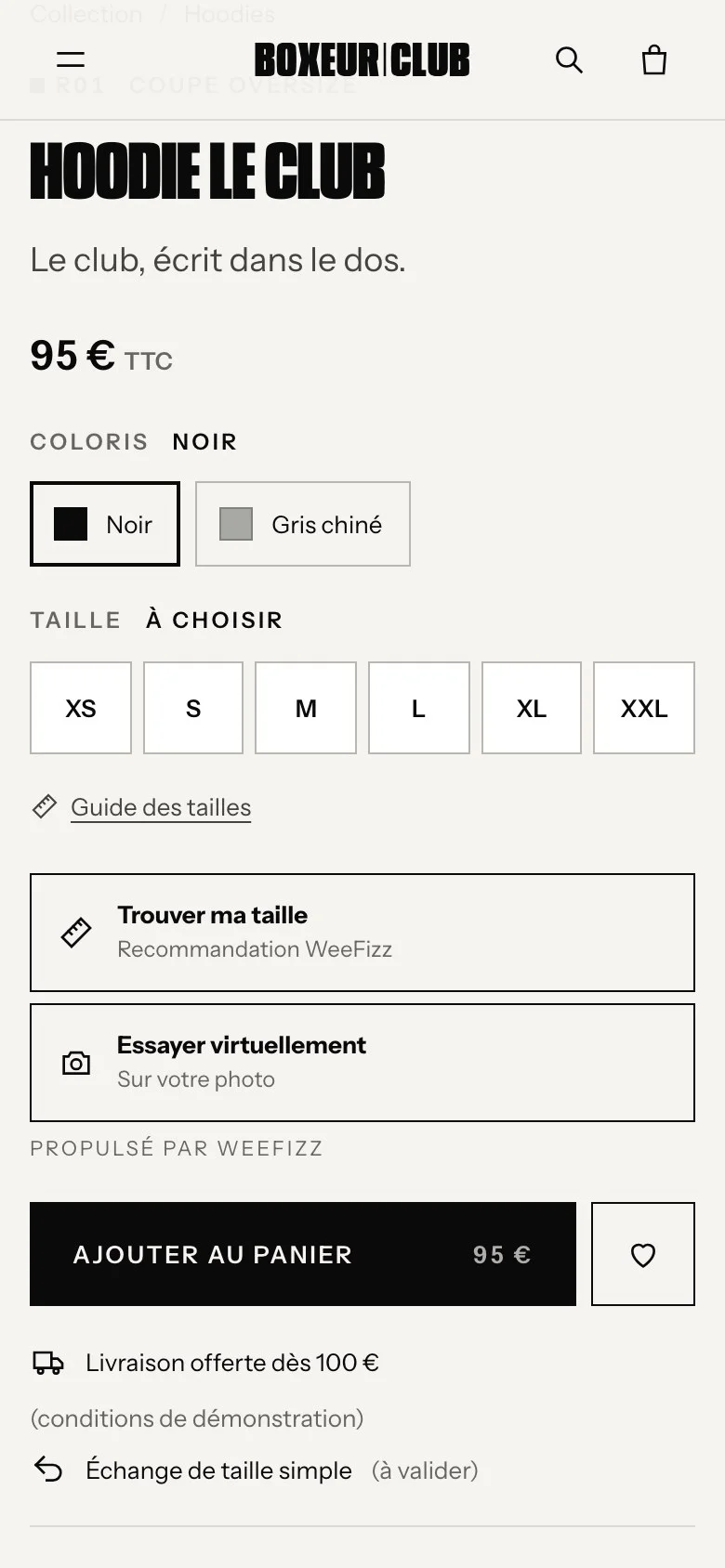
The WeeFizz module adds a “Find my size” button to your PrestaShop product pages. The shopper answers a few questions, with no photo, and sees their size calculated in your own size chart before adding to basket.
PrestaShop 1.7 and later · No commitment · No developer needed
A size guide module displays a table of centimetres. A size recommendation module gives an answer: the size to order, for this shopper and this product.
Most “size chart” modules for PrestaShop open a window showing your chart. That helps, but your customer has to know their chest, waist and hip measurements, then compare on their own. Few people know these figures: they hesitate, order two sizes or give up.
The WeeFizz module starts from what the shopper already knows. The WeeFizz engine works out 14 measurements, then finds the matching size in each product's size chart. The chart remains your reference; what changes is who reads it.
| Size chart module | WeeFizz module | |
|---|---|---|
| What the shopper sees | A table of measurements | Their recommended size |
| What they have to do | Measure themselves, then compare | Answer a few questions |
| Basis of the calculation | No calculation | Your size chart, product by product |
| Photo or tape measure | Tape measure advised | Neither |
| What you learn | Nothing | Openings, recommendations, add-to-baskets |
On every product page linked to a size chart, next to your combinations and your “Add to cart” button.
The module hooks into the positions PrestaShop provides on the product page, by default the reassurance block. Nothing to change in your theme files.
From the Widget tab of your WeeFizz space: above the sizes, above the add-to-cart button, or just below it.
Label, colours, rounded corners, button or simple link, with or without an icon: the widget is set up without touching any code.
The button only appears on products linked to a size chart. Your accessories and unsized products stay as they are.
The module reads each product's combinations. When the shopper accepts the recommended size, it is selected in your theme and your add-to-cart button does the rest.
Good practice: the sizes in your size chart should carry the same names as your combinations. If the chart says “M” and the product page says “T2”, the recommendation cannot be linked to the right combination.
Three steps, a few seconds and no biometric data. Shoppers answer with what they already know.
Gender, height, weight and age, sent over an encrypted connection.
Upper body, stomach, hips: they pick the image that looks like them.
The engine estimates 14 measurements and compares them with the product's size chart. The size appears, ready to add to basket.
The size is then remembered during the visit: on the next product linked to the same size chart, the shopper sees it without answering again. To understand the calculation in detail, see how the WeeFizz recommendation engine works. If you also want to show the garment worn on the shopper's own photo, that is a separate service: WeeFizz virtual try-on, where the size is still calculated with no photo.
Each size chart is integrated as it is, then calibrated by WeeFizz. The size is always calculated in your brand's chart, never in a generic one.
You import your charts, or start from one of 8 ready-made templates, then adjust.
Tops, trousers, jackets: each product is linked to the chart that fits it, with the thumbnail from your PrestaShop catalogue to find your way.
Choose PrestaShop on the sign-up page. The account is created in a few minutes.
In the module manager of your back office, upload the WeeFizz module, then install it.
Your keys arrive by e-mail. Paste them into Modules · WeeFizz · Configuration: your WeeFizz space opens inside PrestaShop and your catalogue is synchronised.
Link your products to their size chart. The “Find my size” button appears on their product pages.
The WeeFizz space is displayed directly in PrestaShop, with its Overview, Analytics, History, Size charts, Widget and Administration tabs. During the trial, you see on your own product pages:
It is the simplest way to judge the effect on your size-related returns with your own figures.
The module is included in the WeeFizz Fashion plans, from €59 excl. VAT per month for 500 recommendations (Solo plan). Three plans, a 14-day free trial on each, no commitment. Each subscription covers one store. See plan details.
The WeeFizz module is compatible with PrestaShop 1.7 and later versions. It installs like any other module, from the module manager in your back office.
No, it builds on it. Your size chart is integrated as it is and calibrated by WeeFizz. Shoppers no longer have to decode it on their own: they answer a few questions and see their size straight away.
The module uses the standard PrestaShop product page positions and your theme's combination selector, whether it is a drop-down list or buttons. If your theme is heavily customised, check the display during the trial, or book a 30-minute call to see it on your products.
No. You create your account, upload the module, paste your keys into the configuration and link your products to their size chart. The button then appears on those product pages.
No. They enter their gender, height, weight and age, then choose their body shape from images. No photo, no tape measure.
Each WeeFizz subscription covers one store. For several stores, you need one subscription per store. Write to us to discuss it.
You carry on with the plan that suits you, or you stop. The trial has no commitment and the subscription can be cancelled at any time from your WeeFizz space.
Is your store built on WordPress? See size recommendation on WooCommerce. For the full picture, discover WeeFizz Fashion, size recommendation for online stores, or ask us your question.
14 days to see, on your own PrestaShop product pages, how many shoppers find their size before adding to basket. No commitment.